
Fashion Tech & AI, resources
How to Make Cinematic Videos with CapCut AI Video Maker

Creating cinematic videos no longer requires expensive equipment, complicated software, or years of editing experience. With CapCut AI Video Maker, anyone can produce stunning, dramatic, film-style visuals in just a few clicks. Whether you’re a content creator, brand owner, filmmaker, or student, CapCut PC gives you the tools to transform ordinary clips into breathtaking cinematic scenes. From AI-powered enhancement to color grading, transitions, and storytelling templates, the platform makes high-quality production accessible to everyone.
Cinematic videos are all about emotion, atmosphere, and visual storytelling. They rely on rich colors, smooth camera movements, perfect pacing, and clean sound. Traditionally, achieving this look took long hours of manual editing. But thanks to CapCut’s advanced AI features, you can automate many of the hardest tasks and focus instead on your creative vision.
Why CapCut AI Video Maker Is Perfect for Cinematic Content
Before jumping into the step-by-step guide, it helps to understand why CapCut stands out among video editing tools:
-
AI Tools That Save You Hours
CapCut offers AI-powered features like Nano Banana Pro, Text to Speech AI, auto captions, AI noise reduction, facial enhancement, and auto beat sync, making the cinematic editing process not only faster but also incredibly precise.
-
Professional Color Grading Made Simple
Cinematic videos depend heavily on color. CapCut PC includes ready-made LUTs, filters, and manual grading sliders that help you achieve tones similar to action films, dramas, or vintage cinema.
-
Film-Quality Transitions and Motion Effects
With slow motion, smooth zooms, camera shake, speed curves, and seamless transitions, your clips gain movement and emotion—key elements of cinematic storytelling.
-
Built-In Templates for Storytelling
CapCut AI Video Maker includes templates designed for intros, travel montages, emotional stories, and aesthetic reels. These give beginners a strong starting point while allowing advanced editors full control.
-
Easy Exporting for Any Platform
Whether you’re sharing on YouTube, Instagram, or TikTok, CapCut lets you export at high quality—up to 4K—so your cinematic masterpiece retains every detail. Try CapCut and other AI tools to make your cinematic video content even more amazing.
How to Make Cinematic Videos with CapCut AI Video Maker
Now you know why CapCut AI Video Maker is perfect for creating cinematic content. Follow this detailed process to create dramatic and film-style videos.
Step 1: Upload your footage
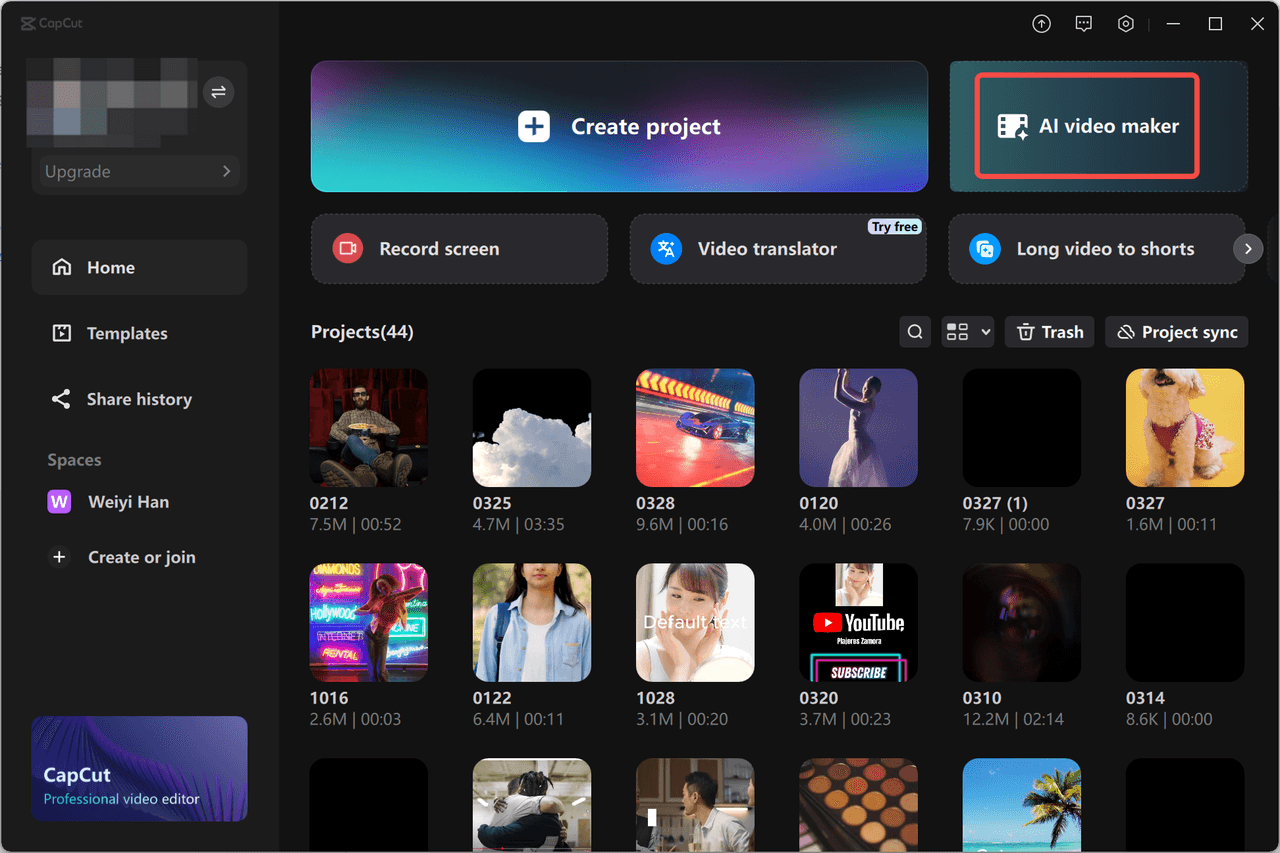
Launch CapCut Desktop and pick the AI Video Maker tool from the main menu. This takes you straight into the workspace where you can begin creating.
Step 2: Create a Script and add a Voiceover
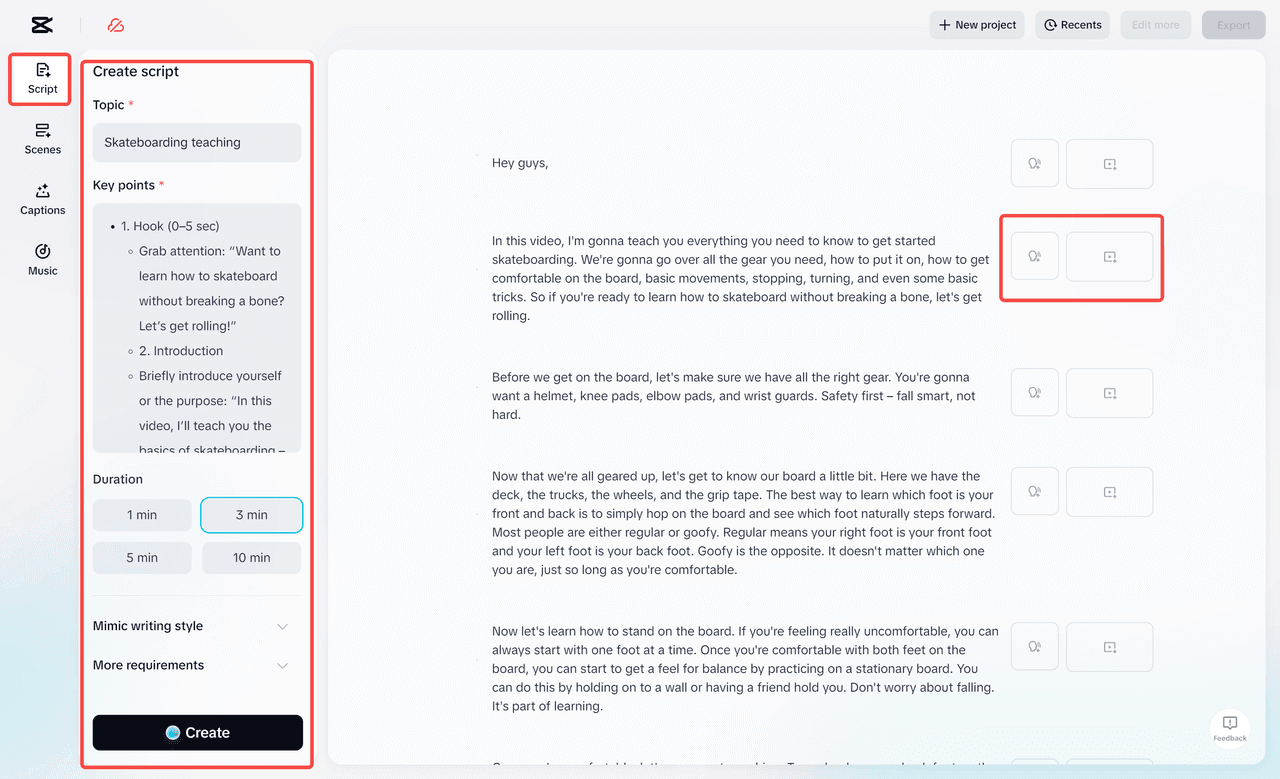
Go to the Script tab and type in what your video is about—your topic, key points, and any ideas you want included. You can also choose a writing style that fits the mood you’re aiming for. Once everything looks good, hit Create to generate your script. If you like the result, click Use, and CapCut will turn it into a video. You can then move to the Scenes tab to add a voiceover, upload extra media, or even create an AI avatar to give your video more personality.
Step 3: Add Background Music and Export Your Video
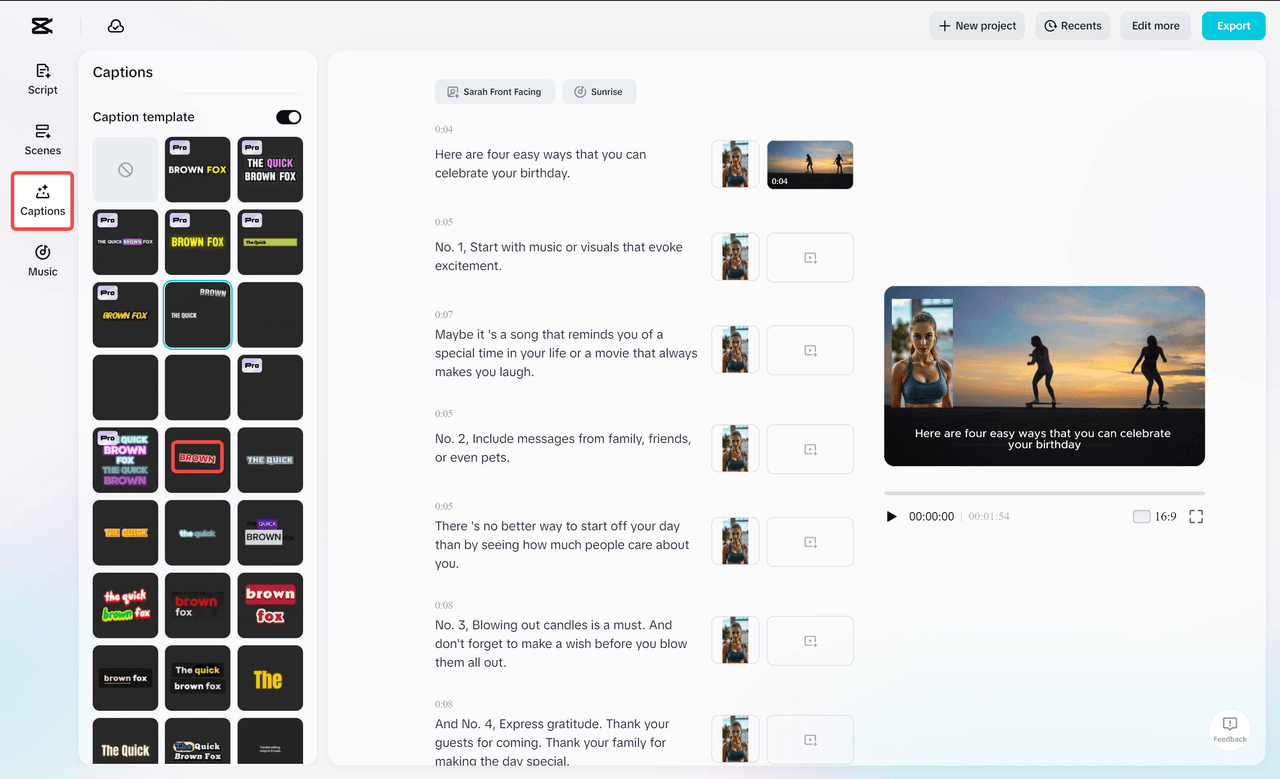
To make your video complete, open the Captions tab and select a text style you like—CapCut will sync the subtitles for you automatically.
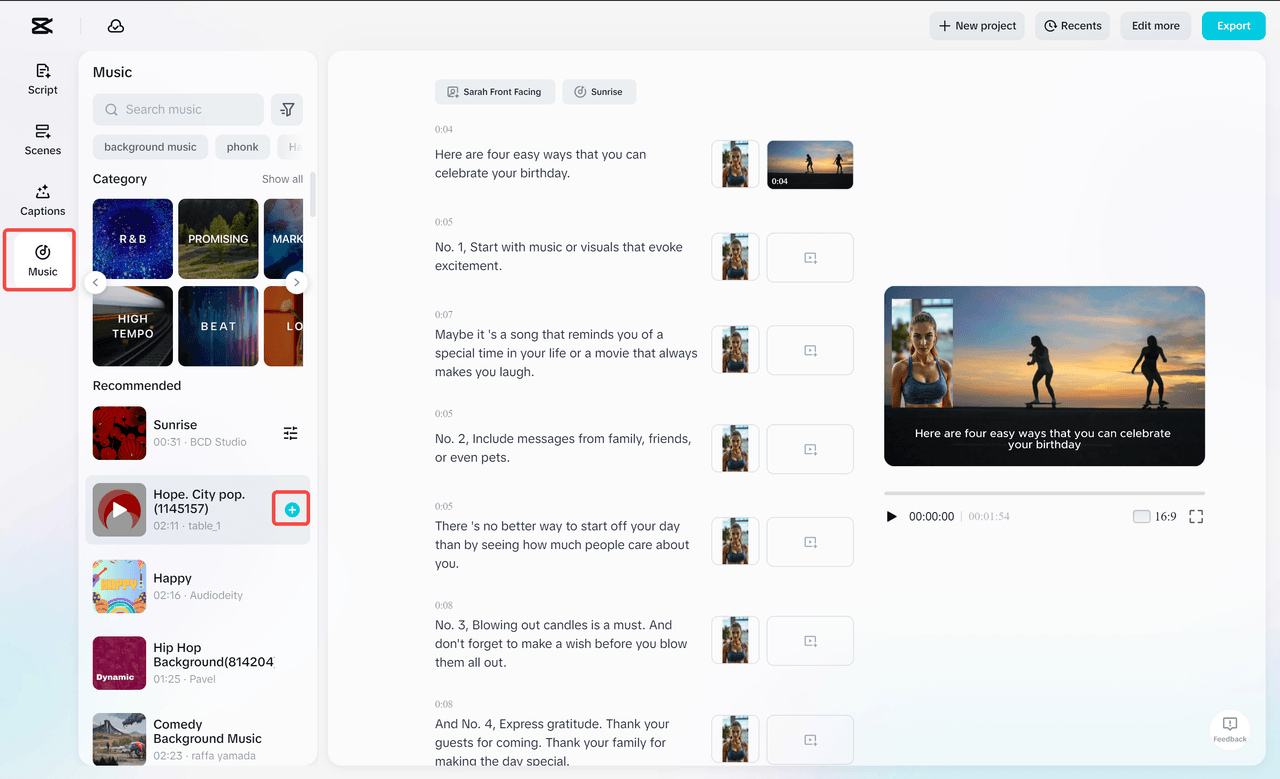
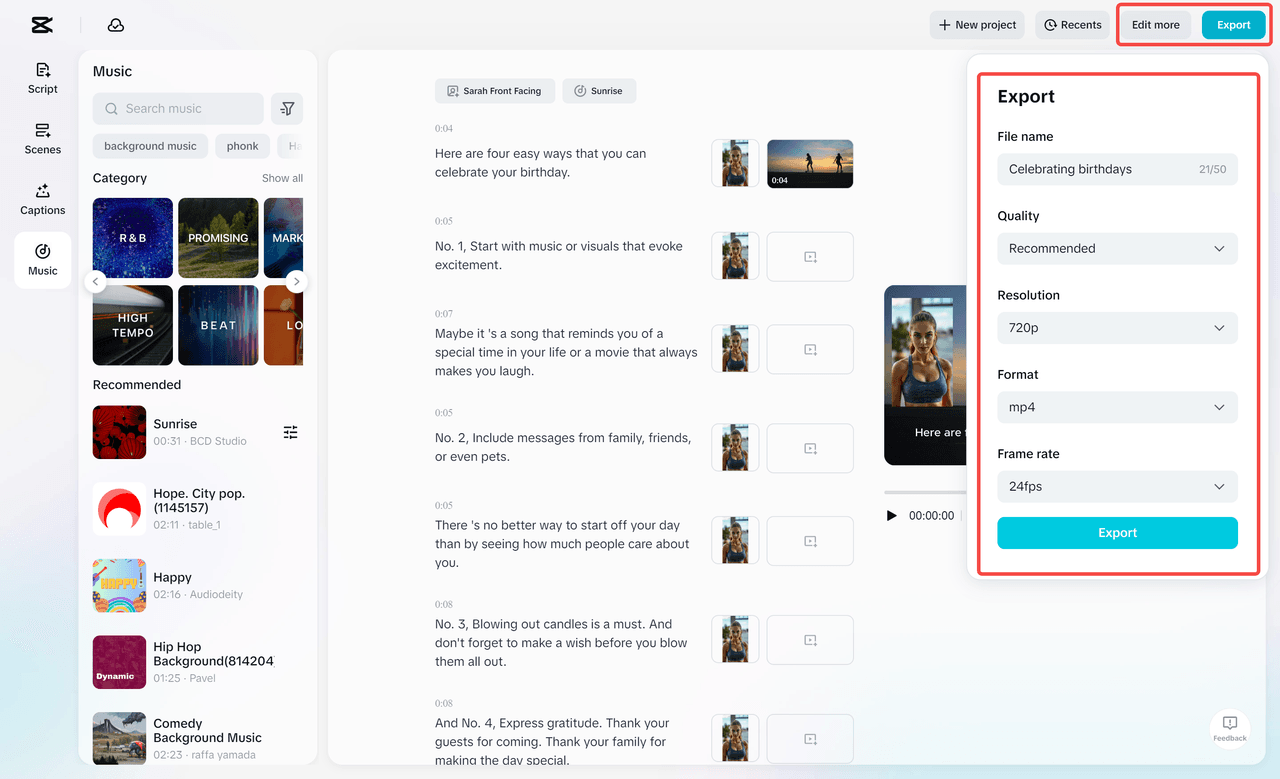
Then head to the Music tab, browse through the built-in tracks, and pick one that fits your video’s mood.
Go to the “Export” section in the top-right corner. CapCut also lets you upload directly to platforms like YouTube, TikTok, and Instagram, making it simple to share your cinematic creation with your audience. Once you’re satisfied with the render settings, click “Export,” and CapCut will process your video.
Extra Tips for Creating Cinematic Videos in CapCut
To take your video to the next level, use these helpful tricks:
Build a Story
Every cinematic video needs a beginning, middle, and end. Even short edits become more engaging when they follow a storyline.
Choose the Right Music
Pick emotional, dramatic, or atmospheric music to match your visuals. CapCut offers a large royalty-free music library.
Use Depth and Layers
Blend foreground and background elements or blur parts of the frame to add dimension.
Keep Transitions Minimal
Too many transitions can distract from the cinematic feel. Use smooth and subtle effects for a professional look.
Experiment with Aspect Ratios
Try 16:9 black bars to mimic film-screen formatting.
Conclusion
Thanks to the powerful features of CapCut AI Video Maker, cinematic editing is no longer limited to professional studios. Whether you want to create dramatic travel films, emotional storytelling videos, or viral aesthetic reels, CapCut PC gives you everything you need to achieve a movie-like finish—quickly, easily, and creatively.


