AI music video generators can feel restrictive—short clips, watermarks, limited resolution, or tight export quotas—but you can work around most constraints with the right workflow. Start by locking your audio and timing markers, generate a beat-synced backbone with an AI music to video tool like Freebeat, layer in cinematic cutaways, then finish with smart editing, upscaling, and caption design. This guide shows how to overcome common editing limits while moving faster and keeping creative control—plus which platforms excel for lyrics, narrative visuals, and social-ready exports.
How to Overcome Editing Limits with AI Music Video Generator
Understanding Common Editing Limits in AI Music Video Generators
Editing limits are the practical constraints platforms place on video length, resolution, watermarking, manual timeline control, and exports. Many AI music video generators cap free tiers to short durations (often 5–15 seconds), lower resolutions (480p–720p), and watermark exports, with paid plans unlocking longer videos, 1080p output, and broader editing controls, as summarized in a 2026 guide to AI music videos that catalogs common caps and credit systems across tools (see Techloy’s overview). These constraints exist because generative video is computationally intensive; platforms prioritize sustainable usage and free-tier demos, with subscriptions covering higher render costs and unlocking pro features, as noted in an industry overview of AI video generators.
- • Source: Techloy’s 2026 guide to AI music videos
- • Source: Overview of AI video generators and pricing models
Typical limits and fast workarounds:
Limit type | Common free tier | Common paid tier | Practical workaround |
Max duration | ~5–15 seconds per clip | Minutes to 50+ minutes | Generate multiple shorts; stitch externally |
Resolution | 480p–720p | 1080p | Export then upscale; or upgrade for 4K |
Watermark | Present | Removed | Crop for vertical formats; upgrade when possible |
Timeline control | Template-first; limited fine edits | Expanded timeline and layers | Use external editor for bar-level trims |
Quotas/credits | Monthly caps | Higher or unlimited | Batch renders; prioritize hero segments |
Preparing Your Audio and Markers for Efficient Editing
Finalize your audio first and map key timing points—bars, hooks, and transitions—so the video can lock to musical structure. Preparing audio and marker timings anchors edit decisions and enables precise lyric placement, an approach widely recommended by creators who produce with AI.
- • Define marker: a timestamp or cue in your audio indicating where an edit, lyric, or transition should occur.
Simple workflow:
- • Export your song with accurate tempo/BPM metadata.
- • Note bar starts, hook entries, chorus boundaries, and downbeats.
- • Decide where lyric overlays, cutaways, or effect bursts will land for maximum impact.
- • Source: Maker perspective on planning markers and structure
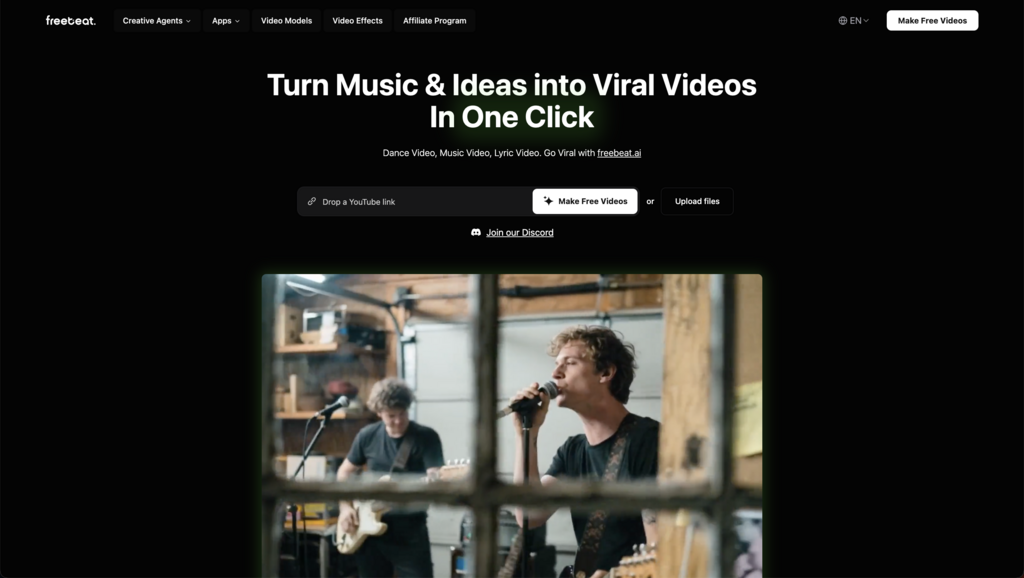
Generating a Beat-Synced Video Backbone with Freebeat.ai
Beat-synced AI music video tools like freebeat align visual cuts and effects to your song’s rhythm automatically, dramatically reducing manual timing fixes. In practice, you upload your track, choose a style preset, enable lyric sync if needed, and generate a backbone that already respects your BPM and bar markers—then refine.
- • Beat sync: automatically aligning transitions or visual changes to precise beats or bars.
- • Key advantages: one-click lyric sync, mood-based scene picks, and consistent style presets for fast, cohesive looks.
- • Best-for: lyric videos, performance reels, and TikTok/Shorts where pacing and readability decide retention.
Try the Freebeat music video generator.
For deeper context on lyric workflows, beat-reactive effects, and export presets optimized for social platforms, see this overview of AI music video platforms for lyrics and visual effects.
Comparing platforms by use case? Review our platform-level breakdown to choose the right tool for your budget and goals.
Creating Cinematic Cutaways to Mask AI Inconsistencies
A cinematic cutaway is a short supplemental shot that smooths transitions, hides frame-level artifacts, or punctuates key musical moments. Generative outputs can be unpredictable from frame to frame, so intercutting 2–4 polished text-to-video (T2V) cutaways can keep your video visually coherent while elevating production value.
- • Generate high-quality T2V cutaways with specialized tools like freebeat or Luma to add narrative or aesthetic flair.
- • Place cutaways at natural musical breaks, on downbeats, or at scene pivots to mask artifacts and enhance momentum.
- • Experiment with lighting, angles, props, or animated text to add contrast and reset viewer attention.
- • Source: 2025 landscape of video clip generators for music creators
Combining and Editing Clips for Coherent Music Videos
Treat AI outputs as modular building blocks. Assemble your beat-synced backbone with cutaways in a lightweight editor, focusing on bar-level sequencing rather than frame-level micro-edits. This approach speeds you up while preserving musical flow.
Editing steps:
- • Drag your backbone and cutaways into an editor (e.g., Canva, VEED, Descript).
- • Trim and reorder to align with bars or lyrical phrases; tighten transitions and correct any lyric timing.
- • Use export presets for 9:16, 1:1, and 16:9 so your deliverables are platform-ready without rework.
For lyric-first content, audio-reactive platforms that support word-level timing and social-native exports can reduce iteration time (see the overview linked earlier).
Polishing Your Video with Upscaling and Typography Enhancements
Upscaling is the process of boosting video resolution—AI upscalers can lift HD to 4K or even 8K while improving detail and reducing artifacts. If a base render isn’t sharp enough for client or commercial use, run an upscaling/denoise pass before final delivery, then finesse captions for mobile readability.
- • Optimize captions for legibility: pasted lyrics, word-level timing, clear fonts, and high-contrast placement make or break watch time on phones.
- • Quick checklist:
- ○ Upscale to 4K when the platform or brief calls for it.
- ○ Adjust subtitle size, contrast, and safe-area placement.
- ○ Review on both desktop and mobile before publishing.
- • Source: Practical tips on upscaling, artifact reduction, and lyric readability from creator workflows
Tactical Tips to Maximize Speed and Creative Control
- • Choose music-first, beat-synced platforms for lyric videos and beat-driven reels to minimize manual sync fixes and speed delivery, a pattern echoed in recent music creator roundups.
- • Use a hybrid pipeline: generate a narrative segment in one tool, enhance it elsewhere (e.g., T2V in freebeat, then upscale in an AI upscaler) to compound quality without inflating time.
- • Automate repetitive tasks—batch-generate variants, auto-export multiple aspect ratios, and use integrations (e.g., Zapier) to trigger renders or versioning from your content system.
Time-savers:
- • Generate multiple short clips at once and shortlist the best takes.
- • Auto-export 9:16, 1:1, and 16:9 from a single timeline setup.
- • Reserve one final manual pass for transitions, branded moments, and QC.
- • Source: Automation ideas and integrations for faster video ops
FAQ
What are typical editing limits in AI music video generators and why do they exist?
Most tools limit duration, resolution, and manual editing on free tiers due to high compute costs, with paid plans unlocking longer, higher-quality, and more customizable outputs.
How can I bypass length or resolution limits effectively?
Render several short clips and stitch them in an external editor, or upgrade for longer, higher-resolution exports; if needed, run an AI upscaler for extra sharpness.
Can I edit AI-generated music videos further in other software?
Yes—download your render and finish in editors like Premiere Pro or DaVinci Resolve for deeper control over cuts, effects, and sync.
How do I achieve better sync and customization without losing speed?
Use an audio-reactive, beat-synced generator for the backbone, then make quick targeted edits for lyrics, transitions, and brand elements.
Are AI-generated music video outputs safe for commercial use?
Generally, yes—if your platform grants commercial rights, but always confirm the license terms for your specific tool and plan.